—— CONTACT US ——
Don’t Hesitate To
Contact US

Collaboration
Channels – every user can create a channel which is a communication group on a given subject. Members of a channel can participate in a group audio sessions, exchange media files via chat, share documents, send messages, locations and contacts.
They can star important messages, then easily access all shared files and conveniently search through the chat.
- Channels are permanent – members can come back to an existing channel at any point. If not logged in at any given moment they will get a PUSH notification.
- Guest members – besides the company users a channel admin can also invite guest members. The guest member, like a vendor or a customer will receive an email invite and will get access to the channel after clicking the provided link. They can return to the channel anytime by simply clicking the link again.
- Phone access, call conferences – channels can also act as a quick and simple call conference.
Just create a new channel, select “Allow phone access” and enter the email addresses of the people you want to invite. The invitees will get an email with the room ID and access numbers list. In the portal you will see when they dial in.
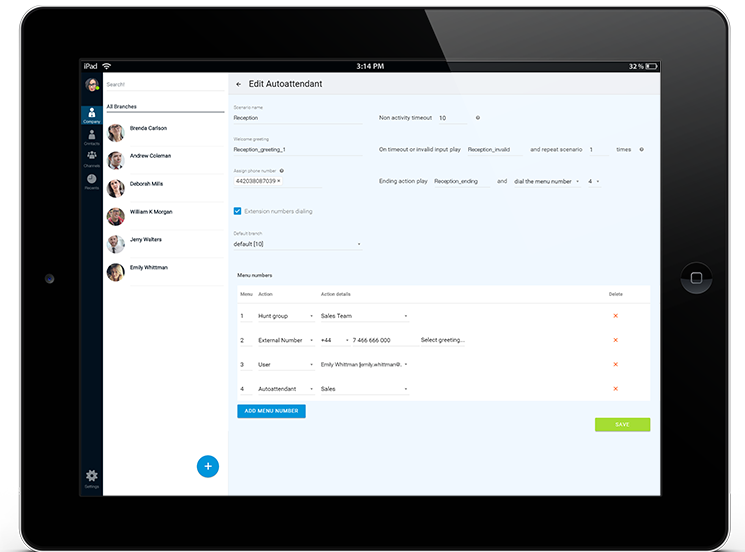
Auto-attendant and
business line
Go to the Setting/Auto-attendant menu and create your own voice answering scenario.
Record directly from the page, upload from a file or just type a welcome greeting.
Add voice menu like “press 1 for sale, 2 for support” and define the associated actions, like:
- User or External Number to send a call to a colleague
- Auto-attendant to create a new menu option
- Hunt group to send the call to a group of people
and more…
Calling and Messaging
All company users are shown in user directory menu. Each has a branch assigned.
A user can assess the directory directly from the portal or the app. To start communication just click the call or chat button. Not only you can send a chat message, but also share documents, media, location and contacts from the chat. When calling phone numbers outside of you company all costs are incurred by the shared company account.
Minutes are used from the plan or from the company balance. The same applies to outbound SMS.

— WORKING PROCESS —
How Does Process Work
Sign Up
The account will have a dedicated phone number and a selected bundle of minutes plus any of the optical plans you might have ordered.
Invite Colleagues
Log in to the portal and click on Company Contacts icon then + button. Add your colleagues by providing their emails and their mobile phone numbers.
Download Mobile Apps
Let your colleagues download the apps, we will send your personal provisioning code via SMS.

How To Start
Home || How To Start